

Career Conversations Staff Resources
Career Conversations is the annual performance feedback and career growth process for staff. The resources below are designed to help staff navigate and submit the Career Conversations checklist in EDGE Learning. For information about the overall Career Conversations process, the purpose behind it, or for resources & guidance on how to approach writing each section of the evaluations, please visit Human Resources.
Access the Career Conversations Checklist
Career Conversations is now completed in EDGE Learning, the university's learning management system, replacing the previous process of a Word document template and upload to UAccess.
| Step 1: Visit EDGE Learning directly or select EDGE Learning from the UAccess menu. Log in with your netID and password. | Image
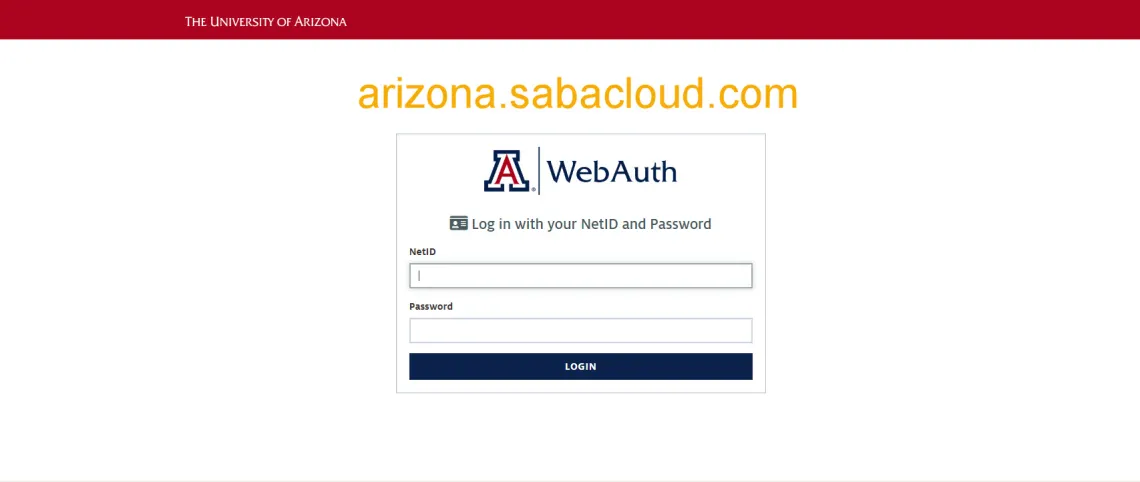
Image
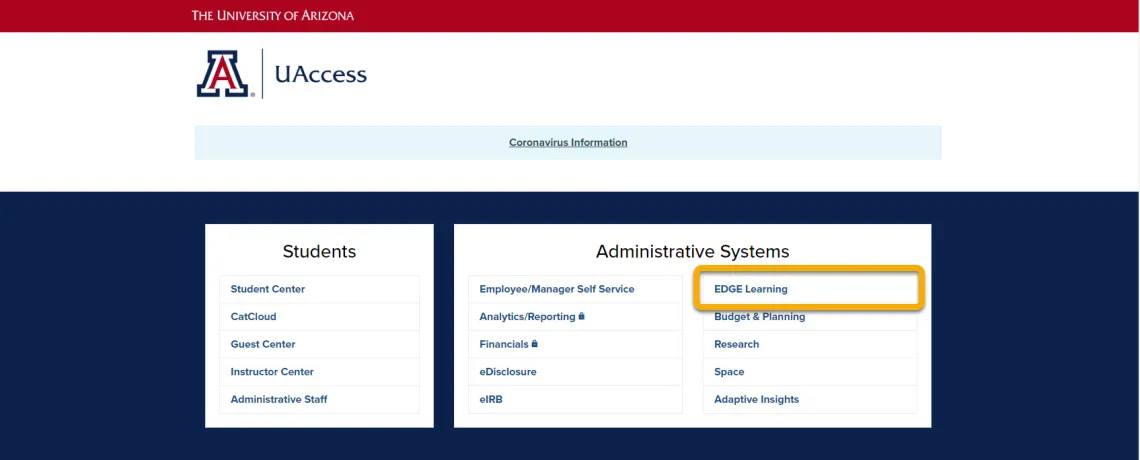
|
| Step 2: From the EDGE homepage, select the Navigation Button. | Image
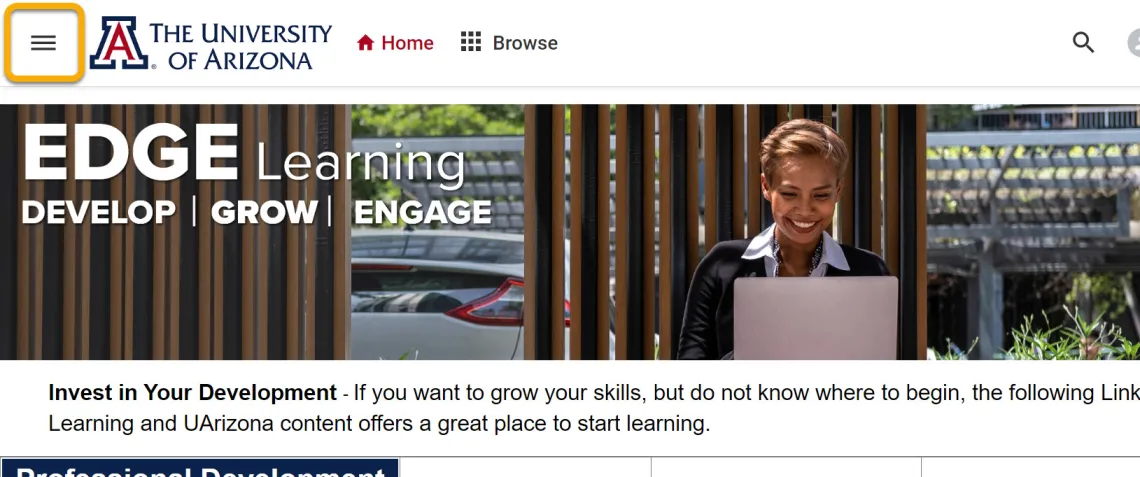
|
| Step 3: Select Me. | Image
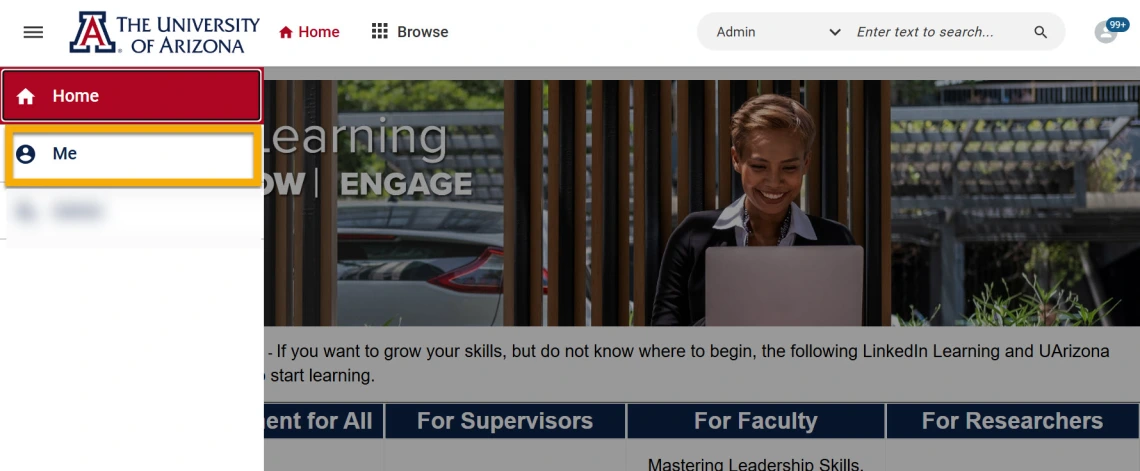
|
Step 4: In Learning & Certifications, look for and select Career Conversations 2026-2027 (click the title). Note: You may need to click Load More to expand the list and make Career Conversations visible. | Image

Image

|
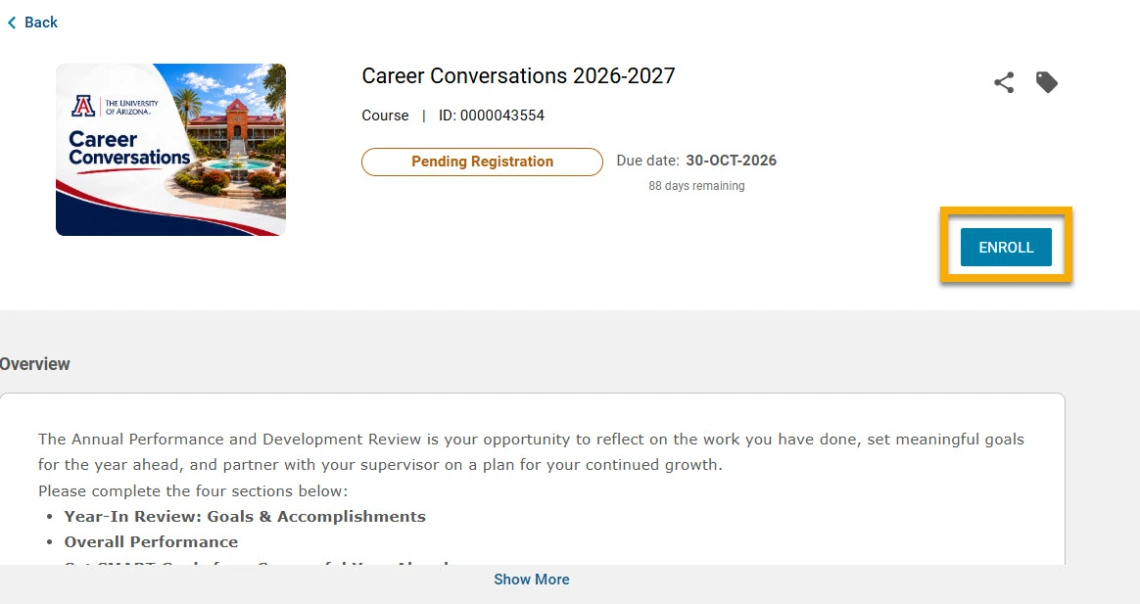
| Step 5: Click the Enroll button, then close the pop up window. | Image
|
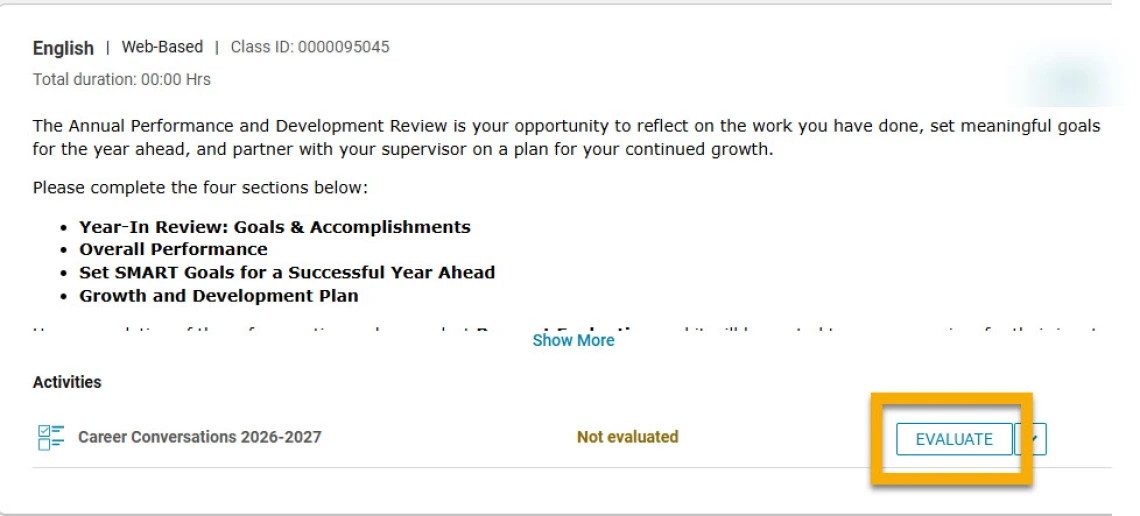
| Step 6: Click the Evaluate button to open the checklist. | Image
|
Navigate the Career Conversations Checklist
A high-level overview of the different sections you will see as you navigate the checklist.
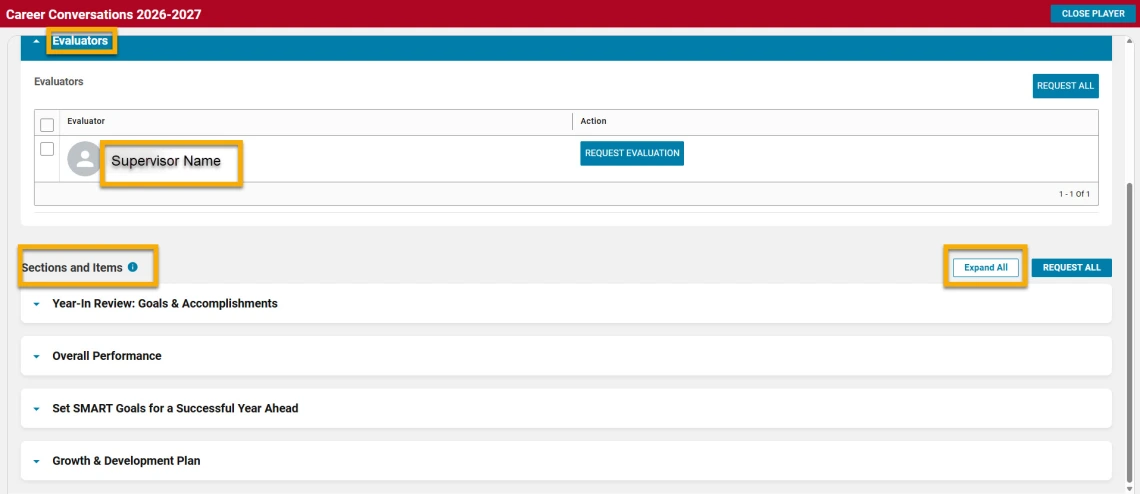
Evaluator
Your supervisor is listed as the evaluator.
Sections and Items
There are four sections in the checklist:
- Year-in Review: Goals and Accomplishments
- Overall Performance
- Set SMART Goals for a Successful Year Ahead
- Growth & Development Plan
Within each section, there are two items:
- Employee Items. This is where you will enter your comments.
- Supervisor Items. This is where your supervisor will enter their comments.
Use the Expand All button to display every section at once, or expand sections individually as needed.
Complete the Employee Sections & Request Evaluation
Complete your employee sections, submit your checklist for supervisor review, and learn how to save your progress, exit, and resume the checklist later.
For each of the four checklist sections:
| Step 1: Click the drop-down arrow to expand the employee item. | Image

|
Step 2: Enter your comments Note: Only plain text is supported. | Image

|
Step 3: Click the Post button A green confirmation message will Note: You can edit your comments | Image

|
| Step 4: After your comments are final and have been posted, click the checkbox to mark the item complete. | Image

|
Step 5: Repeat steps 1-4 above Note: After you have completed |
Image

|
After all four employee sections have been completed and the checkboxes marked complete, select the Request All button to submit your checklist. The system will notify your supervisor that your self-evaluation is ready for review.
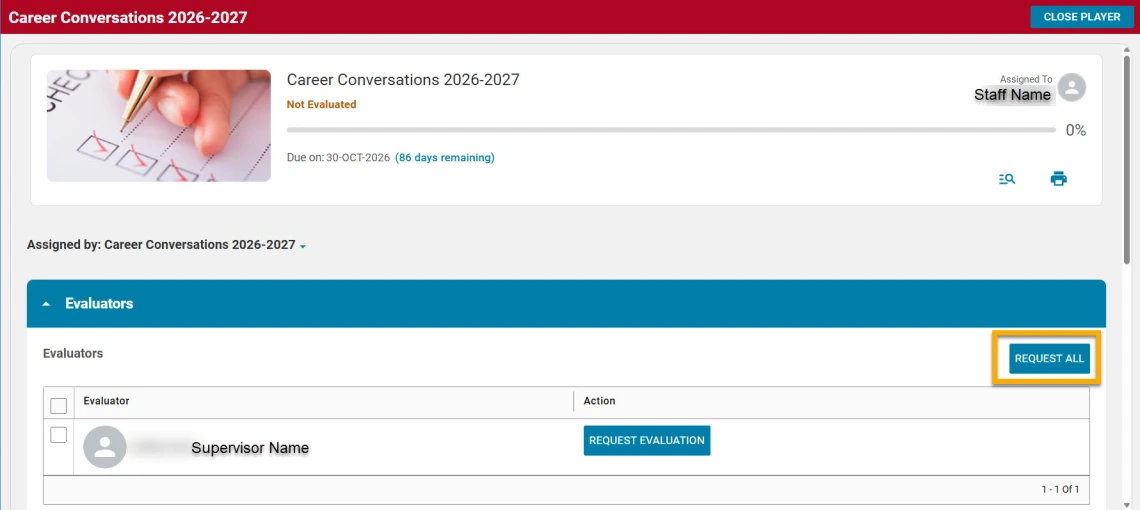
Once you have completed the four employee sections and requested evaluation, step 1 of the Career Conversations process is complete.
Note: Do not enter comments in the "Overall Checklist Comment" box or click "Submit". This will be completed by your supervisor after you meet for your 1:1 career conversation.
You can exit the checklist at any time and return later to continue your work.
To exit:
Make sure any new or updated comments have been Posted to save your progress. Click the Close Player button in the upper-right corner.
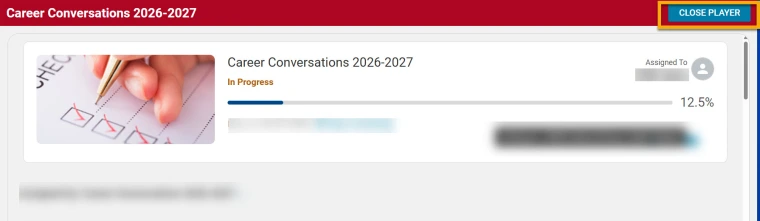
To return to your Career Conversations checklist later:
| Step 1: From the EDGE homepage, select the Navigation Button. | Image
|
| Step 2: Select Me. | Image
|
| Step 3: In Learning & Certifications, look for and select Career Conversations 2026-2027 (click the title). | Image
|
| Step 4: Click the Continue or Evaluate button to resume checklist. | Image

|
FAQ's
The EDGE Learning team is here to support you as you navigate the Career Conversations Checklist.
The EDGE Learning team is here to assist. Please reach out to us at edge-learning@arizona.edu.
Please visit Human Resources for information about the overall Career Conversations process, the purpose behind it, or for resources & guidance on how to approach writing each section of the evaluations.
This is expected. After you request evaluation, the Career Conversations Checklist remains active in your EDGE Learning plan while your supervisor completes their evaluation. The checklist will continue to appear until after you and your supervisor have met for your Career Conversation and your supervisor submits the final checklist. Once the final checklist has been submitted, it will no longer appear as an in progress item in your plan.
This may be because you have multiple university roles. Employees with multiple roles are assigned to the supervisor of their primary role (as listed in UAccess Employee) for Career Conversations in EDGE Learning.
If the supervisor for your primary role is not listed correctly, contact edge-learning@arizona.edu for assistance.